How to Connect Claude or ChatGPT to MyPract (and What You Can Do With It)
Short answer: Open Settings > Agents in MyPract, copy the server address https://www.mypract.com/mcp, and add it to your agent as a custom connector (in Claude: Customize > Connectors > Add). The agent sends you to sign in to MyPract, where you choose one workspace and whether it may only look things up or also make changes. From then on you can ask the agent about your clients, engagements, tasks, time and invoices, and, if you allowed changes, have it create tasks, log time or draft invoices for you, with every change recorded in Activity.
Last updated 22 October 2026. Owners and Admins only. Every MyPract claim here comes from our facts page.
What does connecting an agent to MyPract actually do?
Most firms that use Claude or ChatGPT today copy data out of their practice software and paste it into the chat: a client list, a task export, an invoice summary. Connecting the agent removes that step. The agent gets a set of tools it can call on your behalf, such as "list the clients", "show this engagement" or "create a task", and MyPract answers from your live workspace.
Technically, MyPract exposes a remote MCP server. MCP (Model Context Protocol) is the open standard that Claude, ChatGPT and most newer AI agents use to connect to outside software, so one integration serves all of them. You don't need to know any of that to use it, but it is why the same address works in different agents.
Three things are worth understanding before you connect:
- The agent acts as you. It signs in with your MyPract account and gets your role's permissions, nothing more. An Owner's agent sees what an Owner sees.
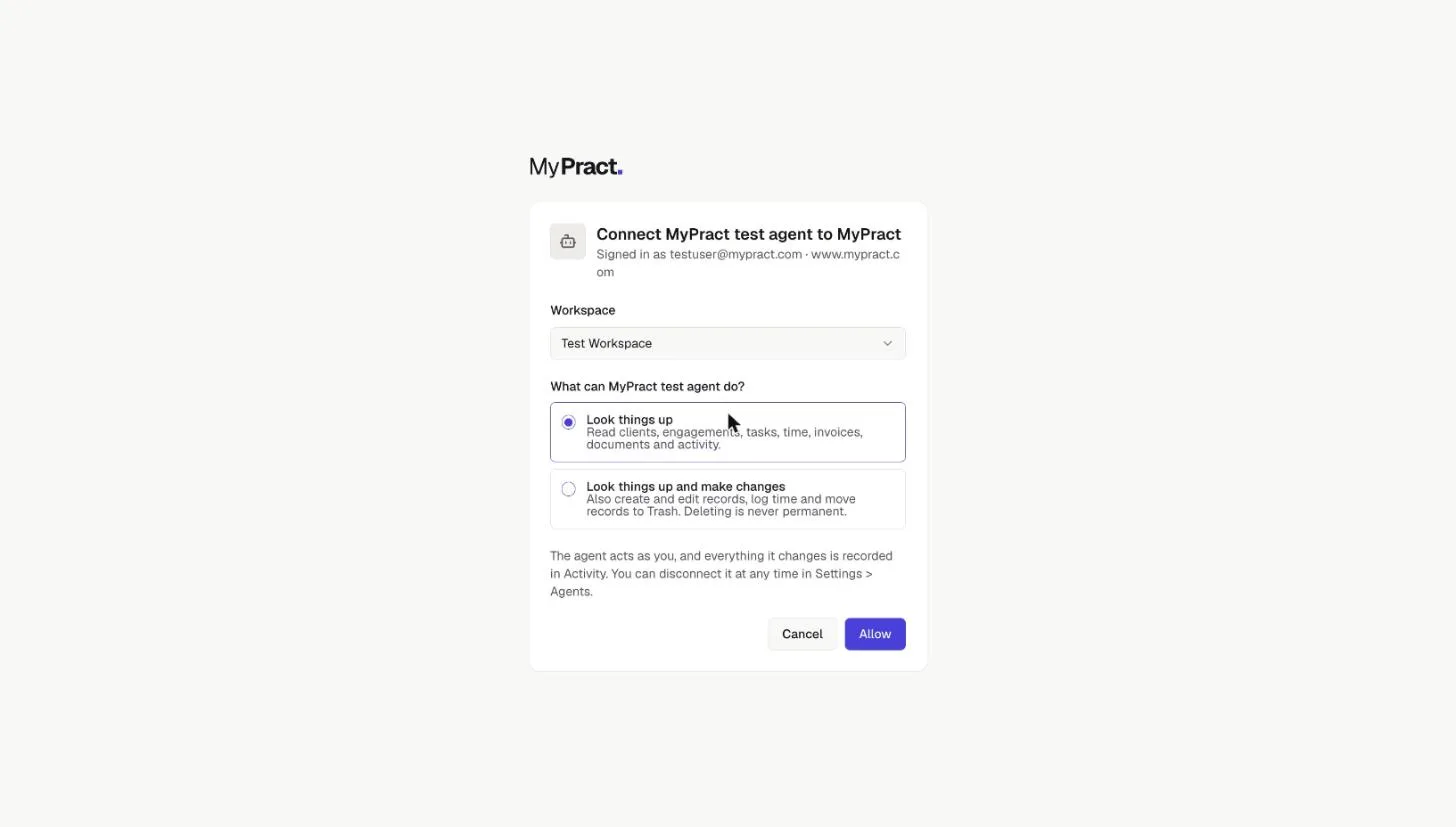
- You choose the access level. "Look things up" is the default and is read-only. "Look things up and make changes" also allows creating and editing records, logging time and moving records to Trash.
- Everything is logged. Every change an agent makes appears in Activity with the agent's name, and deletions go to Trash, so nothing is lost silently.
How do I connect Claude to MyPract?
The whole process takes about five minutes.
1. Copy the server address from MyPract
Sign in to MyPract as an Owner or Admin and open Settings > Agents. The page shows the server address and the agents already connected to this workspace.
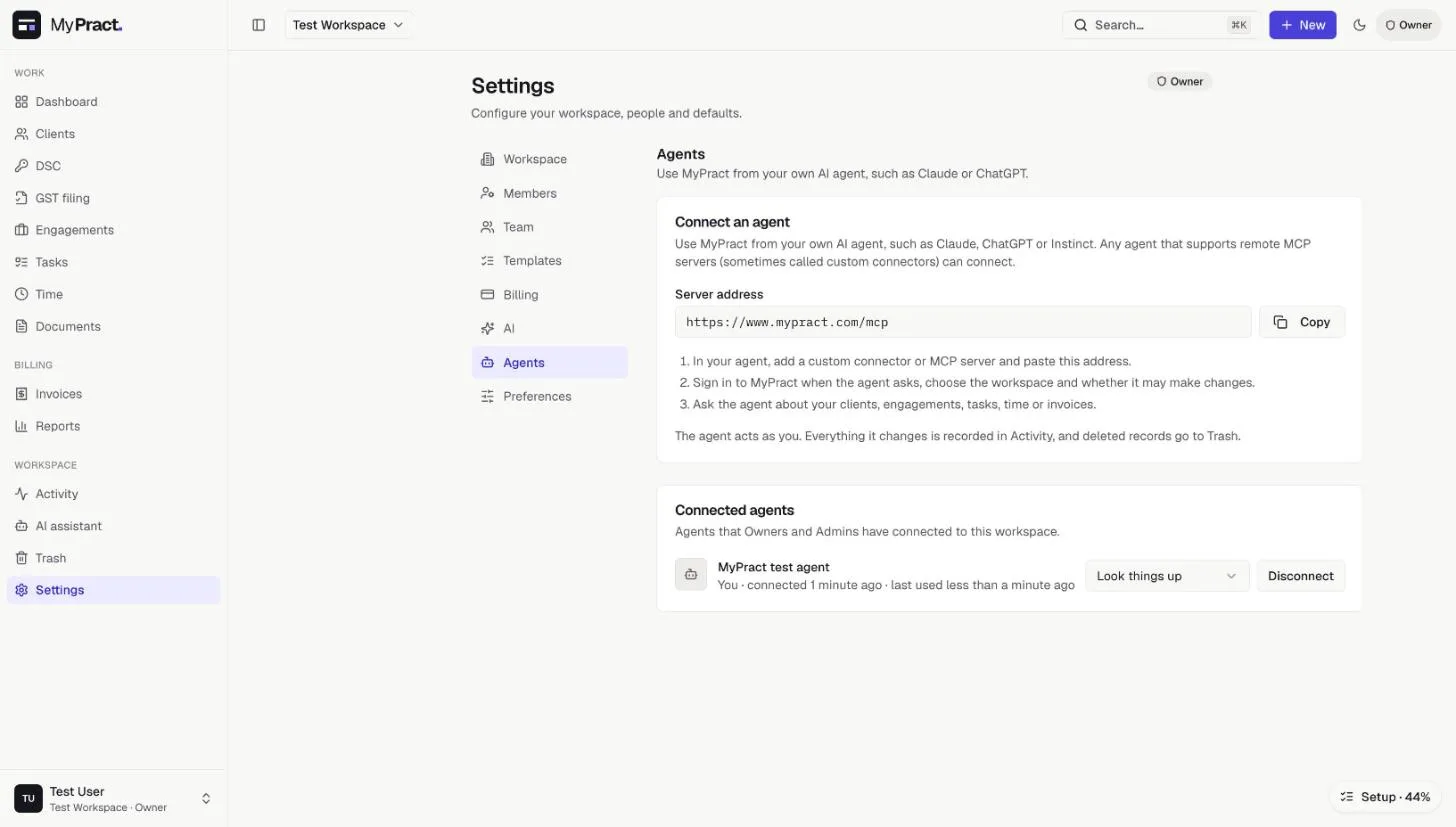
The address is always https://www.mypract.com/mcp.
2. Add a custom connector in Claude
In Claude, open Customize > Connectors (at claude.ai/customize/connectors) and click Add > Add custom connector. Name it "MyPract", paste the address and click Continue.
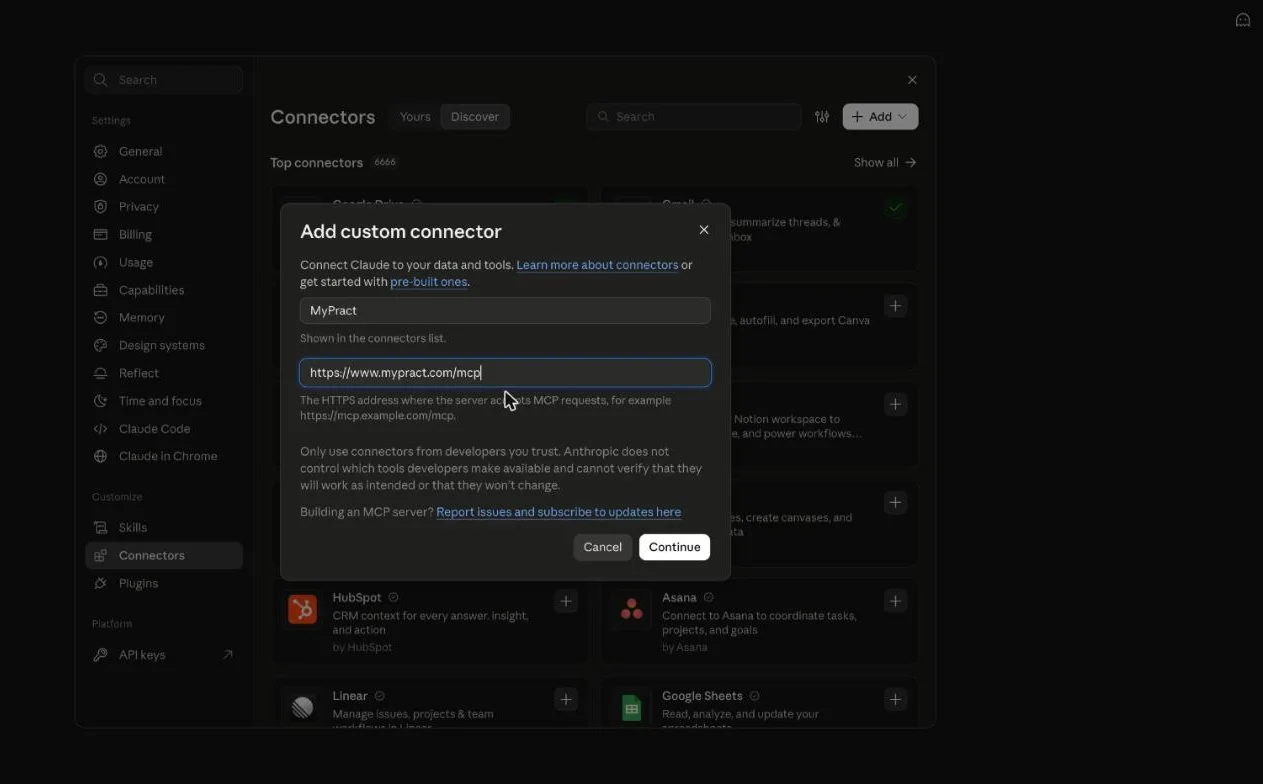
Claude checks the server and fills in the sign-in settings itself: Sign in now for authentication and Register automatically for the OAuth client, both marked "Detected". Leave the client ID, secret and request headers empty, click Add, then Connect.
3. Sign in and choose the workspace
Claude opens MyPract's sign-in page. If you are already signed in, you go straight to the consent screen. Pick the workspace (only workspaces where you are an Owner or Admin are listed), choose Look things up or Look things up and make changes, and click Allow.
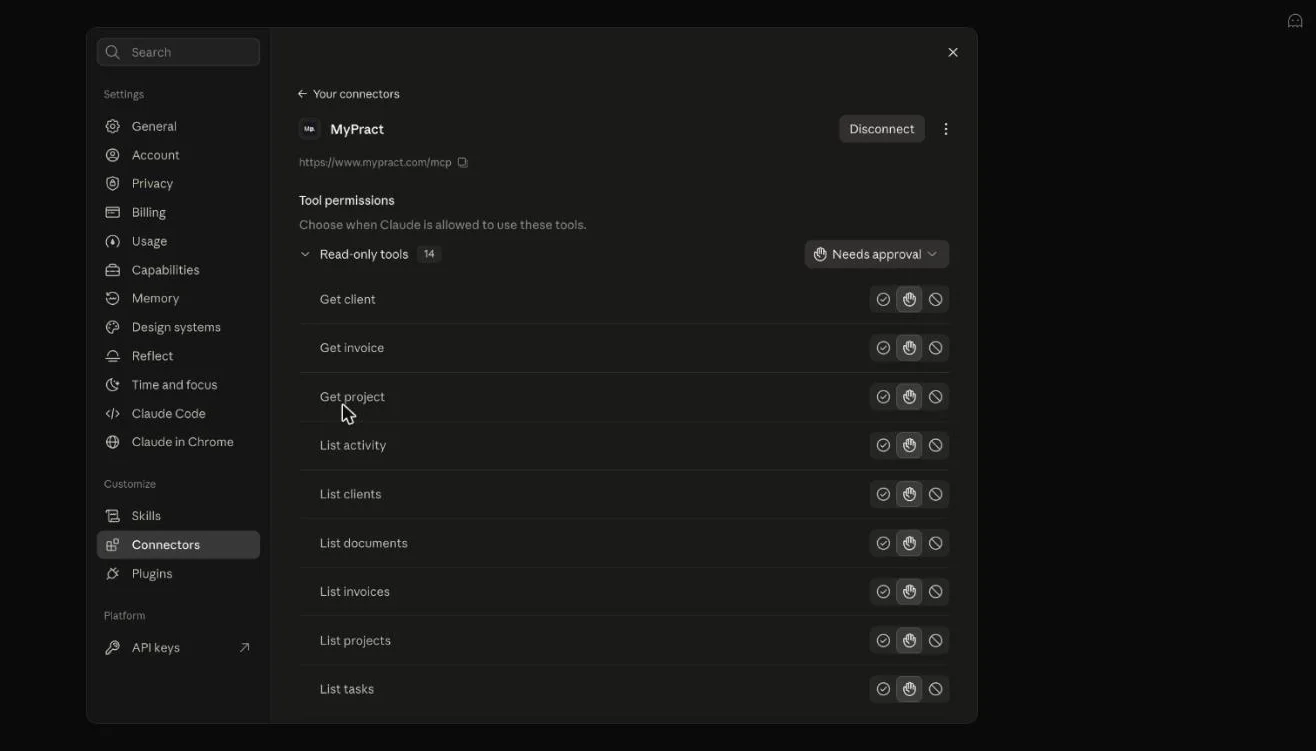
That's it. Back in Claude, MyPract appears under Your connectors with its tools listed. Each tool is set to "Needs approval", so Claude asks you before it reads or changes anything; you can relax that per tool once you trust the connection.
Try MyPract free for 3 months
No card required, and the trial never converts to a paid plan automatically.
Start your free trialWhat can the agent do once it is connected?
With Look things up, the agent gets 14 read tools:
| Area | What the agent can read |
|---|---|
| Clients | Search and list clients with status, industry, open engagements, overdue tasks and health; open one client's details |
| Engagements | List engagements by client, status or service line; open one engagement with its task counts and hours logged |
| Tasks | List tasks by engagement, assignee, status or due date, including subtasks |
| Time | List time entries and get hour totals by person, client, engagement or period |
| Invoices | List invoices by client or status; open one invoice |
| Documents | List documents by client or engagement |
| Team and activity | List team members and their roles; read the activity log; see what is in Trash |
With Look things up and make changes, 12 write tools are added: create and update clients, engagements and tasks, log and edit time, create invoices and update their status, and move records to Trash or restore them.
Some things are deliberately not available to any agent: permanent deletion, approving time, period locks, rate rules, members and roles, workspace and AI settings, billing, and sending emails. For those, the agent will tell you where to go in the app.
Prompts that work well for a CA firm
Read-only prompts, safe to try on day one:
- Which of our clients have overdue tasks, and what are they?
- How many billable hours did we log on the Sharma Textiles statutory audit this month, and by whom?
- List the invoices that are overdue and total them by client.
- Summarise what happened on the FY 2025-26 audit engagement this week.
- Which tasks are due before 31 October and still unassigned?
- Draft a reminder email to Sharma Textiles about the documents we are still waiting for, using the open tasks on their engagement.
With changes allowed:
- Create a task on the Sharma Textiles audit to reconcile GSTR-2B with the purchase register for September, due 31 October, high priority.
- Log 2 hours of billable time on that engagement for today with the note "stock verification".
- Mark the task "Collect bank confirmations" as done.
- Create a draft invoice for Test Client from their approved, unbilled time.
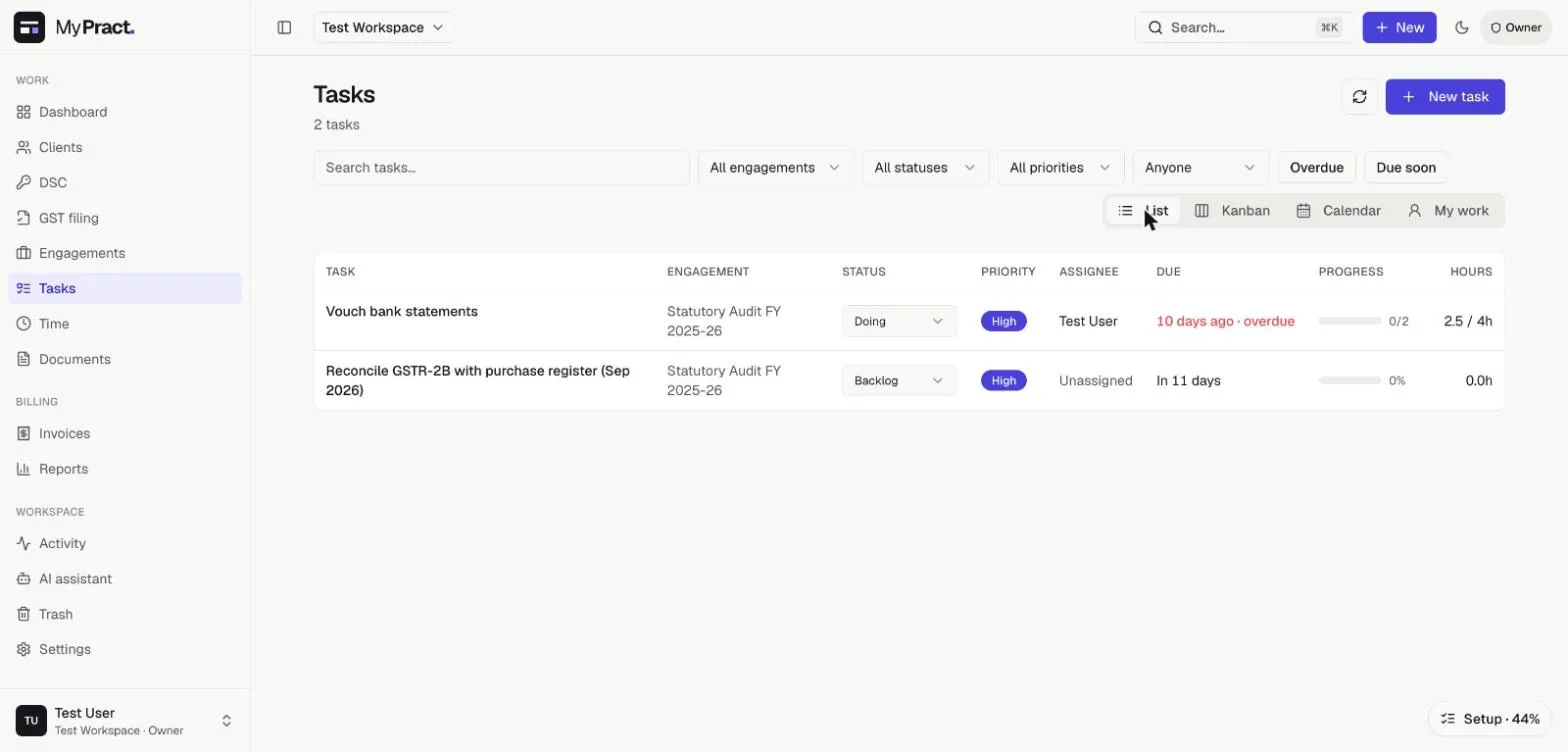
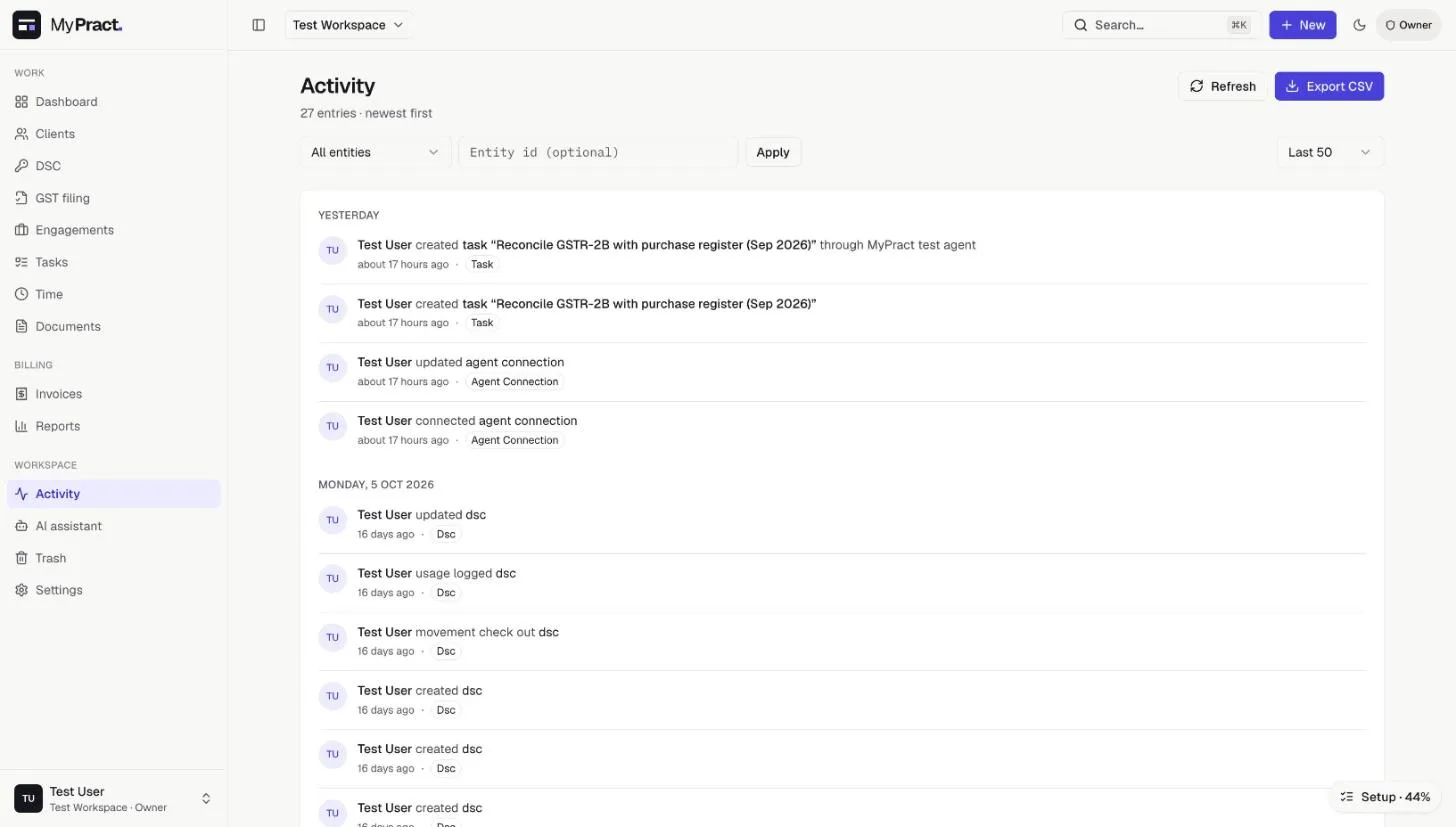
In our test, the first write prompt produced exactly one task, which appeared in the Tasks list like any other, and MyPract recorded it twice in Activity: once as the task being created, and once as a change made through the agent, with the tool and the inputs the agent used.
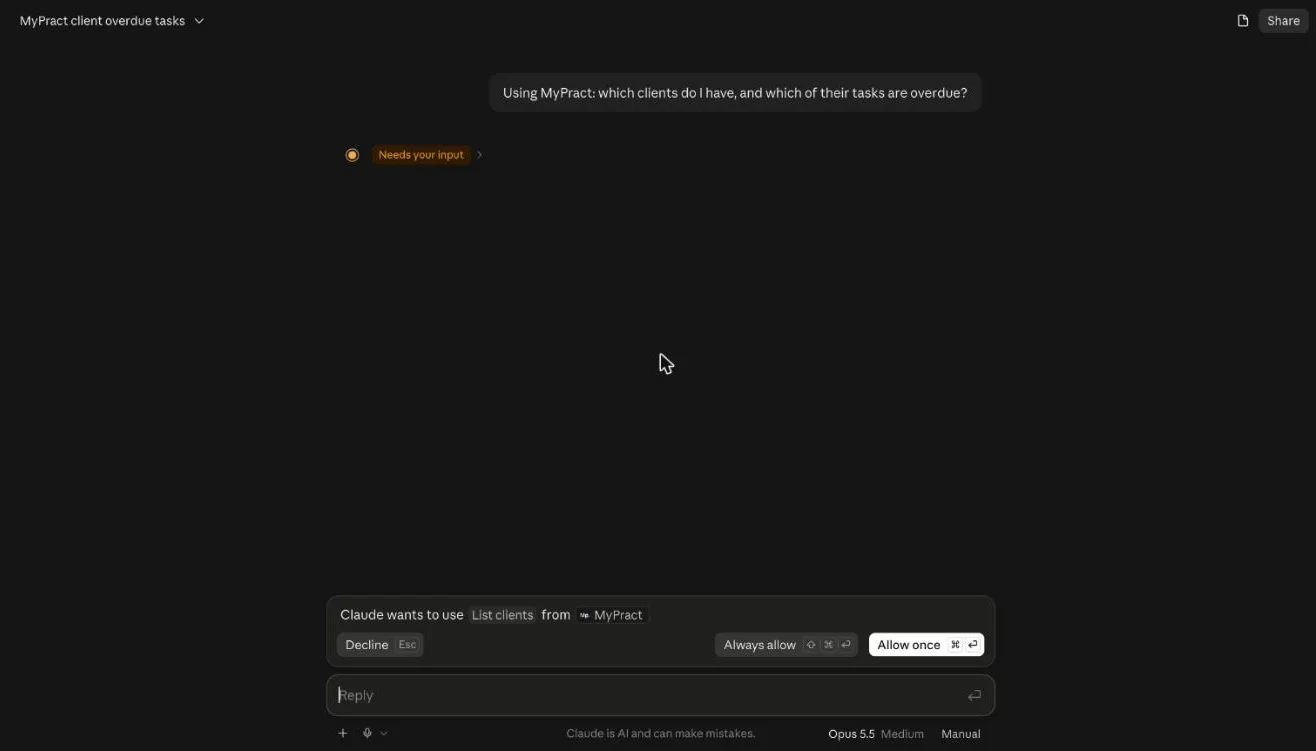
Claude asks before running a tool, so a prompt turns into one or two approval cards in the chat: "Claude wants to use List clients from MyPract", with Allow once, Always allow or Decline. Keep to one change per prompt; the agent is better at that than at bulk edits.
How do I stay in control?
Start read-only. The default is "Look things up". You can switch a connection to "Look up and change" later from Settings > Agents, and switch it back any time.
Watch Activity. Every change made through an agent shows up as made by you, through the agent, with the agent's name. Filter Activity by your name to review what the agent did.
Disconnect in one click. Settings > Agents lists every agent connected to the workspace, who connected it, and when it was last used. Any Owner or Admin can change its access or disconnect it, and the agent is refused on its next request.
Your sign-in stays yours. The agent never sees your MyPract password. It gets a short-lived token through the standard OAuth sign-in, which expires after an hour and is renewed quietly while the connection is active. Revoking the connection stops renewal.
Think about the provider. What the agent reads to answer you is processed by Anthropic, OpenAI or whoever runs the agent, under their terms. MyPract's own hosting (data domicile by country; today Mumbai) and its privacy policy cover MyPract, not the agent. For client data covered by the DPDP Act, check the provider's data terms and consider keeping the connection read-only.
Which agents work?
- Claude (web and desktop apps): Customize > Connectors > Add, as above.
- ChatGPT: custom connectors are added under Settings > Connectors, with Developer mode switched on; the same address and sign-in flow apply.
- Other agents: anything that supports "remote MCP servers" or "custom connectors" with OAuth sign-in should work the same way. Agents in beta vary; if yours asks for an API key instead of offering sign-in, it is not using OAuth and will not connect yet.
- Claude Code (the terminal tool) may not complete sign-in at the moment because of how it receives the callback; use the web or desktop app.
What this is not
MyPract does not offer a general-purpose REST API, Zapier integration or webhooks. The MCP server is built for AI agents acting on behalf of a signed-in Owner or Admin, not for scripts or other software. If you are weighing MyPract against tools that offer those, see AI practice-management software compared and our note on what "AI-native" practice management means. For a broader view of what practice software should do for a CA firm, start with the guide to practice management software for CA firms.
Try MyPract free for 3 months
No card required, and the trial never converts to a paid plan automatically.
Start your free trialHow we checked
We connected an MCP test client to a test workspace on 20 October 2026 and ran the flow end to end: sign-in and consent, the 14 read tools, a refused write on a read-only connection, the same write after switching the connection to "Look up and change", and the Activity entries it produced. We added the same address in Claude and confirmed it detects the sign-in and registration settings shown above. Tool names and counts come from the server as it is today; they may grow.
Frequently asked questions
Who can connect an AI agent to MyPract?
Workspace Owners and Admins. Managers, Staff and Viewers see the Agents page but cannot connect an agent. If you are not an Owner or Admin, the consent screen says so and offers no workspace to choose.
Does the agent see everything in the workspace?
It sees what you can see. The agent acts as the person who connected it, with that person's role, so an Owner's agent reads everything an Owner can read. It never gets more access than you have, and it works in one workspace only.
Can the agent delete data?
Only if you allowed changes, and never permanently. Deleting through an agent moves the record to Trash, where anyone with the right role can restore it. Permanent deletion, approving time, period locks, rate rules, roles, members and billing are not available to agents at all.
Is my client data sent to Anthropic or OpenAI?
The data the agent reads to answer you is processed by the agent's provider under that provider's terms, the same as anything else you type into Claude or ChatGPT. MyPract itself stays in its own hosting (data domicile by country; today Mumbai, AWS ap-south-1, through Supabase) and does not share your workspace with anyone. Read your provider's data terms before connecting, and keep the connection read-only unless you need changes.
How do I stop an agent?
In MyPract, open Settings > Agents and click Disconnect next to it. The agent is refused on its very next request. You can also switch it to "Look things up" to keep it connected but read-only.
Does this work with agents other than Claude and ChatGPT?
Any agent that supports remote MCP servers with OAuth sign-in can connect to the same address. We tested the full flow with an MCP test client, and Claude detects MyPract's sign-in settings automatically when you add the address. There is no general-purpose REST API or Zapier integration.
Related reading
- What Is AI-Native Practice Management Software?AI-native practice software builds AI into its records, permissions and logs, not a chatbot on top. What it means, what to check and the honest limits.
- Best AI Practice Management Software for Accountants (2026)Which practice management tools ship working AI today, and which only promise it? Karbon, TaxDome, Canopy, Financial Cents, Uku, Zoho, Intuit and MyPract.
- Best Practice Management Software for CA Firms in India (2026)Which practice management software suits which CA firm in 2026: MyPract, Jamku, ERPCA, Zoho Practice, CCH iFirm, TaxDome, Karbon and XPM compared.
Start with the best practice management software for CA firms, or see every comparison, MyPract pricing, all features or MyPract at a glance.