How to Auto-Forward GST Portal Emails and OTPs to Your CA (and Keep a Copy)
Short answer: The GST portal sends its emails, including the one-time password (OTP) for EVC signing, from donotreply@gst.gov.in. To have them reach your CA automatically while you keep the original, create a filter or rule for that one sender with a forward action. In Gmail: add and verify your CA's address under Settings > Forwarding and POP/IMAP, then create a filter for from:(donotreply@gst.gov.in), tick Forward it, and leave Skip the Inbox and Delete it unticked. In Outlook, create a rule with Forward to.
Last updated 28 October 2026. Screenshots are from Gmail on the web, taken on 28 October 2026; personal details are blurred. Steps for Outlook and Zoho Mail are from their own help pages. This is practical guidance for taxpayers and their consultants, not legal advice.
CA firms: you can send this page to clients as it is. Each section stands on its own, so a client using Outlook can skip straight to that part.
Why forward GST portal emails to your CA?
Most GST work is done by a consultant, but the GST portal sends its messages to the taxpayer: the email address and mobile number registered against the GSTIN. When your CA files a return for you, the portal emails you a one-time password to sign it with EVC, and your CA has to wait for you to read it out. If you are travelling, in a meeting or asleep, the OTP expires and the filing stops, often on the due date.
Forwarding fixes that for the email side. The moment the portal emails you, your CA gets a copy, and you still have the original. It also gives your CA the acknowledgements (ARNs) for each filing and the intimations about your registration, so their records match yours without you sending anything.
Three things it does not do:
- It does not forward SMS. OTPs sent to your registered mobile number, such as login OTPs, still come only to your phone.
- It does not give your CA your password or access to the rest of your mailbox. Only emails from the one sender you choose are forwarded.
- It is meant for new emails. Set it up well before a due date, not while a filing is waiting for an OTP.
Which emails does the GST portal send, and from which address?
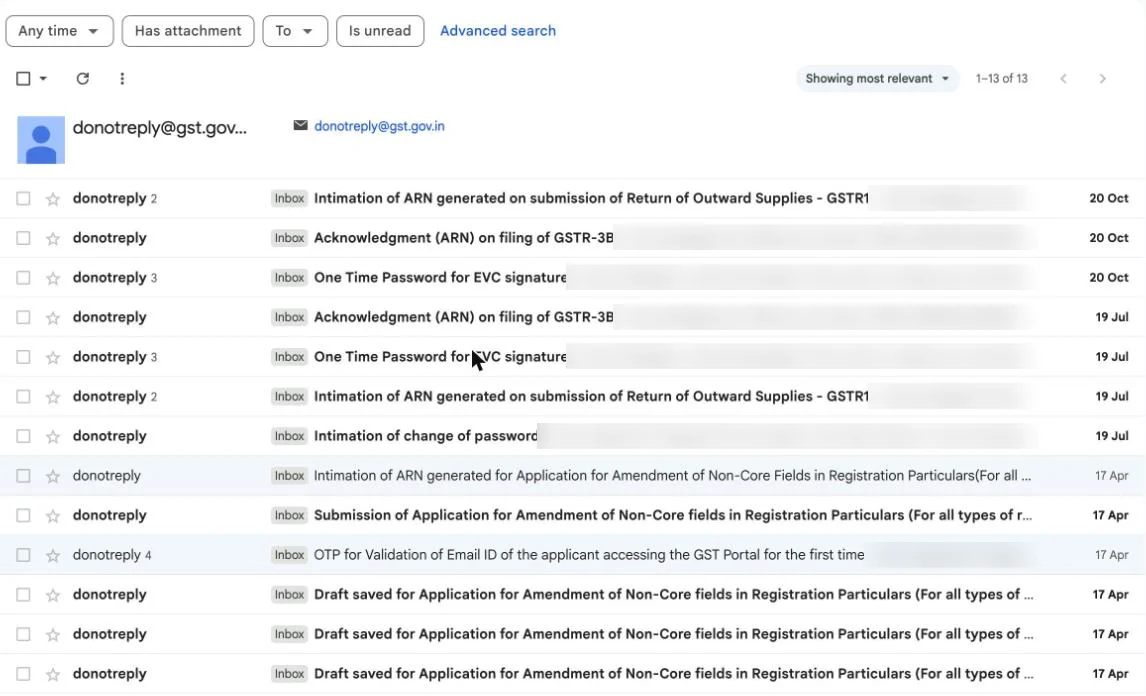
The GST portal's emails come from donotreply@gst.gov.in. Here are the subjects we found in one taxpayer's mailbox over a year, all from that address:
| Email subject (as sent by the GST portal) | What it is | Useful to your CA? |
|---|---|---|
| One Time Password for EVC signature | OTP to sign a return with EVC | Yes: needed to complete filing |
| OTP for Validation of Email ID of the applicant accessing the GST Portal for the first time | OTP when a new user validates their email | Yes, at registration or first login |
| Acknowledgment (ARN) on filing of GSTR-3B | Proof of GSTR-3B filing | Yes: for the file |
| Intimation of ARN generated on submission of Return of Outward Supplies - GSTR1 | Proof of GSTR-1 filing | Yes: for the file |
| Submission of / Intimation of ARN generated for Application for Amendment of Non-Core Fields (REG-14) | Registration amendment status | Yes |
| Intimation of change of password | Security alert after a password change | You must see this yourself; your CA seeing it too is a second check |
Match the sender exactly. Fraudsters send look-alike emails from addresses that only resemble the portal's. A filter for the exact address forwards only the real ones.
What do you need before you start?
- Your CA's email address, ideally a shared firm mailbox (for example the firm's GST desk) rather than one person's personal address, so nothing is missed when someone is on leave.
- The email account registered on the GST portal, opened on a computer. Gmail and Outlook set up forwarding in the web version, not the phone app.
- Your CA on hand for two minutes. Gmail and Zoho Mail send a confirmation to the CA's address, and the CA has to click it before forwarding starts.
How do I auto-forward GST portal emails in Gmail?
This takes about ten minutes. You add your CA's address once, then create a filter that forwards only GST portal emails.
1. Add your CA's address as a forwarding address
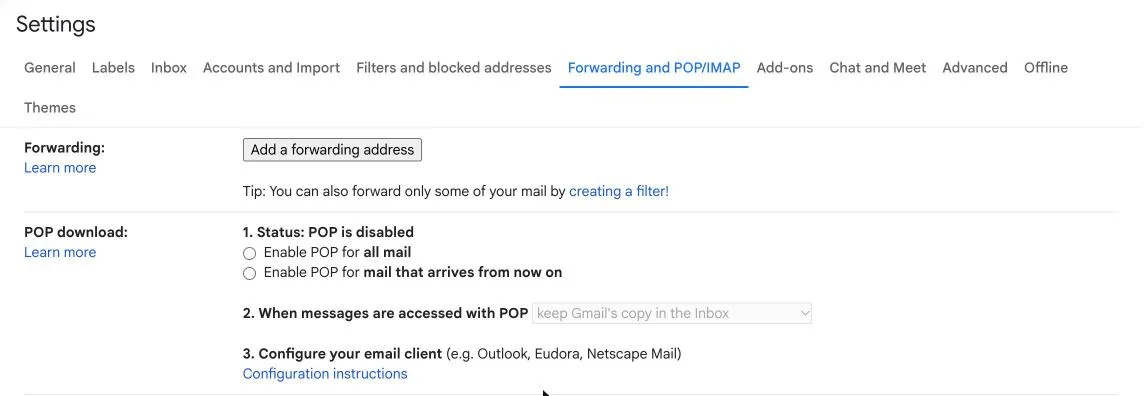
In Gmail, click the gear icon, then See all settings, then the Forwarding and POP/IMAP tab. Click Add a forwarding address.
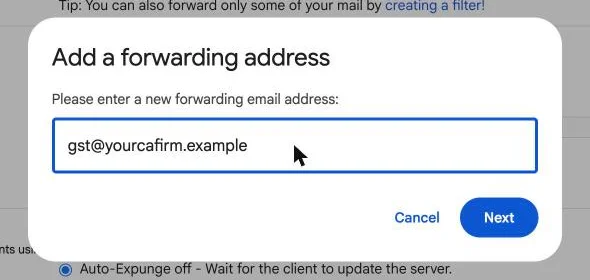
Type your CA's address and click Next, then Proceed.
2. Ask your CA to confirm
Google sends a verification email to your CA's address. Your CA opens it and clicks the confirmation link. Back in Gmail, refresh the settings page; the address now appears in the Forwarding section.
Leave the Forwarding section itself set to Disable forwarding. That setting forwards all your mail, which you don't want. The filter in the next step forwards only GST portal emails.
3. Search for the GST portal sender
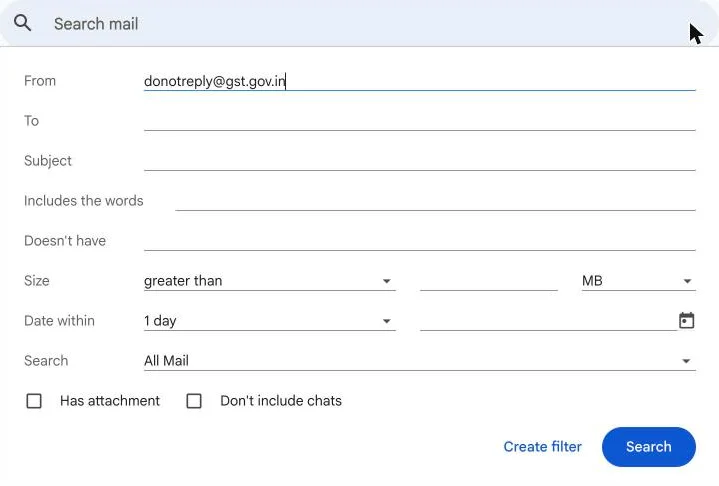
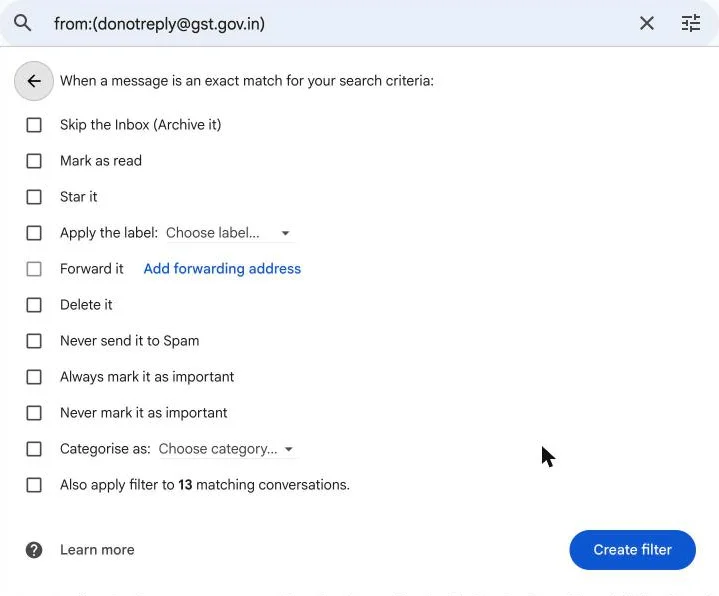
Click the search options icon at the right of the Gmail search bar. In From, type donotreply@gst.gov.in. Leave every other field empty, then click Create filter (not Search).
4. Tick Forward it, and nothing that removes the email
Gmail shows what to do with matching emails. Tick Forward it and choose your CA's address from the list. Before you add the address in steps 1 and 2, this option is greyed out with an Add forwarding address link next to it, as in the screenshot.
To keep a copy in your inbox:
- leave Skip the Inbox (Archive it) unticked;
- leave Delete it unticked.
Optionally tick Never send it to Spam, so a portal OTP never ends up in your spam folder and gets forwarded late or not at all. Then click Create filter.
5. Test it
The next time the portal emails you, check with your CA that the copy arrived. You can also ask your CA to trigger a harmless email, such as an OTP for a return they are preparing, while you are both available. If nothing arrives, open Settings > Filters and blocked addresses and check that the filter shows from:(donotreply@gst.gov.in) and "Forward to" your CA's address.
How do I set it up in Outlook.com or Microsoft 365?
Outlook uses rules instead of filters. Microsoft documents the steps for Outlook on the web and Outlook.com[2]:
- Open Settings (gear icon) > Mail > Rules, and choose Add new rule.
- Name it, for example "GST portal to CA".
- Add a condition: From, and enter
donotreply@gst.gov.in. - Add an action: Forward to, and enter your CA's address.
- Click Save.
Use Forward to, not Redirect to. Both leave the original in your inbox. A forwarded email comes from you, which makes it clear to your CA whose OTP it is. A redirected email appears to come from the portal itself[2]. Don't add a "Delete" or "Move to" action if you want to keep the copy where you'll see it.
Work or business email on Microsoft 365? Microsoft 365 blocks automatic forwarding to addresses outside your organisation by default. If your rule is saved but your CA receives nothing, ask whoever manages your company's email to allow external forwarding, for you or for this rule, in the outbound spam policy. A blocked forward typically bounces back with the error "550 5.7.520 Access denied, Your organization does not allow external forwarding"[3].
What about Zoho Mail and other providers?
Zoho Mail can forward with filters too, but only to an address that has been verified first. Zoho sends a verification code to the destination address, and your CA passes it back to you to confirm[4]. Check that your Zoho plan includes forwarding, then create a filter for the sender donotreply@gst.gov.in with a forward action.
Any other provider works the same way. Look for "filters" or "rules", match the sender exactly, choose "forward", and make sure no action deletes or moves the original.
| Gmail | Outlook.com / Microsoft 365 | Zoho Mail | |
|---|---|---|---|
| Where | Settings > Filters and blocked addresses (create from search) | Settings > Mail > Rules | Settings > Filters |
| CA's address verified first? | Yes, by link[1] | No separate step in Microsoft's rule instructions | Yes, by code[4] |
| Keeps your copy? | Yes, unless Skip the Inbox or Delete it is ticked | Yes, unless a delete or move action is added | Yes, unless the filter also deletes or moves |
| Common snag | Forward it greyed out until the address is verified | Microsoft 365 blocks external forwarding by default | Forwarding depends on plan |
Try MyPract free for 3 months
No card required, and the trial never converts to a paid plan automatically.
Start your free trialIs it safe to auto-forward GST OTPs to my CA?
It is as safe as the people and the mailbox you forward to. The EVC OTP is how a GST return is signed. Whoever receives it can complete a filing your consultant has prepared, so treat the forwarding rule the way you would treat a signing authority:
- Forward to someone you have engaged to file for you, and only while that engagement lasts. Remove the rule the day you change consultants.
- Prefer the firm's mailbox to a personal one. A firm mailbox is managed and stays with the firm when staff move on.
- Match the exact sender. Never forward "everything containing GST" or "everything with OTP in the subject". Banks, income tax and other services also send OTPs, and those should never leave your mailbox.
- Keep two-step verification on your own email. If someone gets into your mailbox, they can change the forwarding.
- Look out for the alerts. The portal emails you when your GST password changes. If you didn't make the change, act at once, and check your mailbox's filters and forwarding for anything you didn't add.
- Officials don't ask for OTPs. GST officers and the portal never ask you to share an OTP by phone or message. Forwarding to your own CA is your choice. A caller asking for one is a fraud attempt.
For CA firms, the forwarded emails contain clients' personal and business data. Keep them in a mailbox that only the GST team can open, and set a retention period. Our DPDP Act checklist for CA firms covers this.
What should the CA firm do with forwarded emails?
A forwarded OTP is only useful if the right person sees it within minutes. A few habits that help:
- One shared address per firm (for example a GST desk mailbox), with a rule there that labels or files emails by client GSTIN or name, so the person filing a client's return sees that client's OTP.
- A note in the client file recording that forwarding is set up, from which address and since when. Add a step to the offboarding checklist reminding the client to remove it.
- Track the work, not just the emails. If you use MyPract, the filing itself sits as a task under the client's engagement. After a client's GSTIN is connected with a one-time code, MyPract also shows read-only GST portal data: filing status, notices turned into tasks, ledgers, GSTR-1 vs GSTR-3B and GSTR-2B reconciliation. MyPract does not read mailboxes, forward email or file returns. See what it does on our features and facts pages, or the guide to collecting client documents without WhatsApp for the document side of the same problem.
If you are still choosing how to run your firm's compliance work, our guide to the best practice management software for CA firms compares the options.
Try MyPract free for 3 months
No card required, and the trial never converts to a paid plan automatically.
Start your free trialHow we checked
On 28 October 2026 we listed the GST portal emails in a taxpayer's Gmail mailbox received over the past year: all came from donotreply@gst.gov.in, with the subjects in the table above. We then went through Gmail's forwarding and filter screens on the web up to the final confirmation, without saving, and took the screenshots; names, reference numbers and message previews are blurred. Outlook and Zoho Mail steps come from Microsoft's and Zoho's help pages, and the Microsoft 365 forwarding default from administrator guidance; we did not test those two providers ourselves. Menu names change from time to time; if yours differ, search your provider's help for "forward with a rule" or "forward with a filter".
Frequently asked questions
Will my CA be able to read all my emails if I set this up?
No. The filter or rule forwards only messages from donotreply@gst.gov.in. Everything else stays in your mailbox only. Check the filter after saving it to confirm the sender is exactly that address.
Does forwarding remove the email from my inbox?
Not unless you ask it to. In Gmail, leave Skip the Inbox and Delete it unticked. In Outlook, use a Forward to rule and do not add a delete or move action. You keep the original and your CA gets a copy.
Will this forward the OTP that comes by SMS?
No. Email forwarding only covers what the GST portal sends by email. OTPs sent to your registered mobile number, such as the login OTP, still arrive by SMS, so your CA will still need you for those.
Can my CA file my return with the forwarded OTP?
The EVC OTP is how a return is signed, so forwarding it lets the person who receives it complete that signature. Only set this up with a CA you have engaged to file for you, and only for the period of that engagement.
Does MyPract read or forward my emails?
No. MyPract does not connect to client mailboxes and does not forward email. Firms that use MyPract can connect a client's GSTIN, with a one-time code, to read GST portal data such as notices, ledgers and filing status; nothing is filed from MyPract. See our facts page.
How do I stop the forwarding?
Delete the filter (Gmail Settings > Filters and blocked addresses) or the rule (Outlook Settings > Mail > Rules), and in Gmail also remove the CA's address under Forwarding and POP/IMAP. Do this whenever you change your CA.
Sources
[1] Google, "Automatically forward Gmail messages to another account", https://support.google.com/mail/answer/10957 (checked 28 October 2026).
[2] Microsoft, "Use rules to automatically forward messages", https://support.microsoft.com/office/45aa9664-4911-4f96-9663-ece42816d746 (checked 28 October 2026).
[3] Teamwork, "Enabling external forwarding in Microsoft 365", https://support.teamwork.com/desk/email-forwarding/enabling-external-forwarding-in-microsoft-365 (checked 28 October 2026).
[4] Zoho, "Email Forwarding", https://www.zoho.com/mail/help/email-forwarding.html (checked 28 October 2026).
Related reading
- How to Collect Client Documents Without WhatsAppA document request process for CA firms: checklists per engagement, a client portal, file naming, versions and manual follow-ups, and why WhatsApp is risky.
- DPDP Act 2023 Checklist for CA FirmsA DPDP Act checklist for Indian CA firms: when the DPDP Rules 2025 apply, notice, consent, security, 72-hour breach reports, retention and vendor contracts.
- Best Practice Management Software for CA Firms in India (2026)Which practice management software suits which CA firm in 2026: MyPract, Jamku, ERPCA, Zoho Practice, CCH iFirm, TaxDome, Karbon and XPM compared.
- Best Practice Management Software for Tax Consultants in India (2026)Which office software fits Indian tax consultants and GST practitioners: notices, return volume, GST data, filing tools and year-one cost, compared.
Start with the best practice management software for CA firms, or see every comparison, MyPract pricing, all features or MyPract at a glance.